
Hi 👋,
This is a quick tutorial on how to run Linux graphical interface application in Windows using X Server’s forwarding feature.
The first step is to download and install the VcXsrv Windows X Server on your 💻 Windows machine.
Then, start VcXsrv with the following configuration:
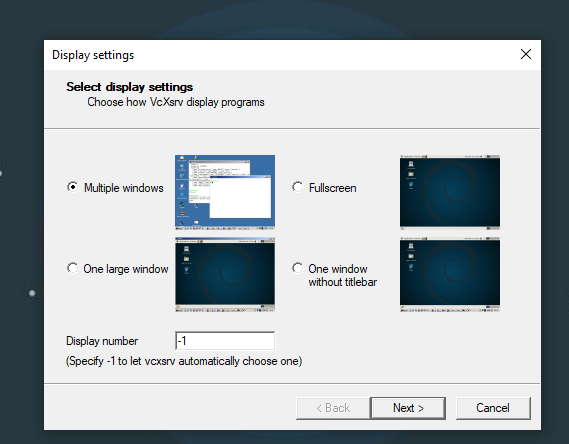
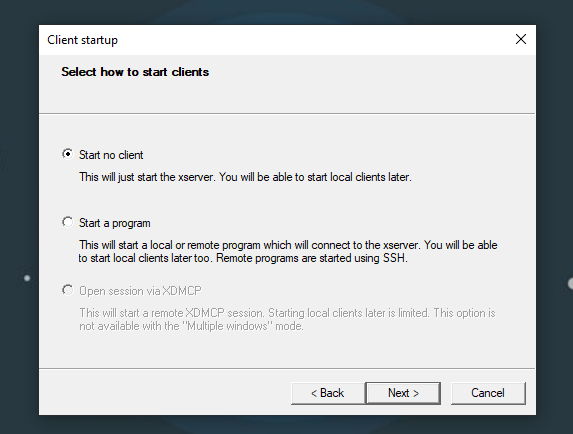
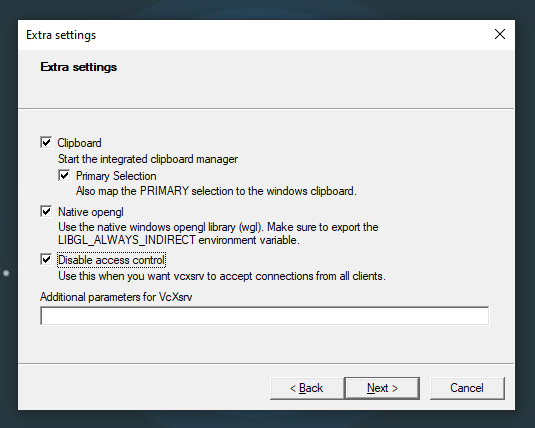
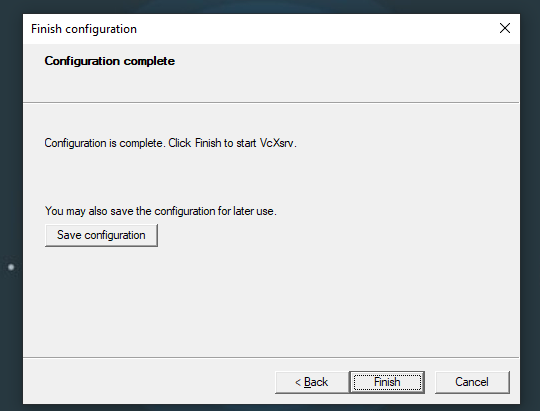
Avoid allowing the X server on public networks. Its display can expose windows and input to other clients; restrict the firewall rule to the private network or WSL setup you trust.
Ensure that VcXsrv is not blocked in Windows Firewall, it should be allowed in Public and Private networks.
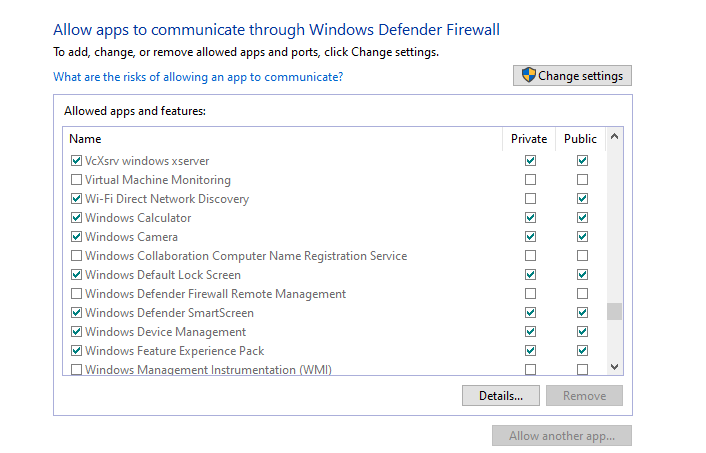 You may also use more restrictive firewal settings as explained in /wsl-windows-toolbar-launcher#firewall-rules.
The next step is to configure your Linux box.
I’m using Ubuntu in WSL 2.0 and pasting the following code into ~/.zshrc or ~/.bashrc does the trick for me. Feel free to upvote the author on SO.
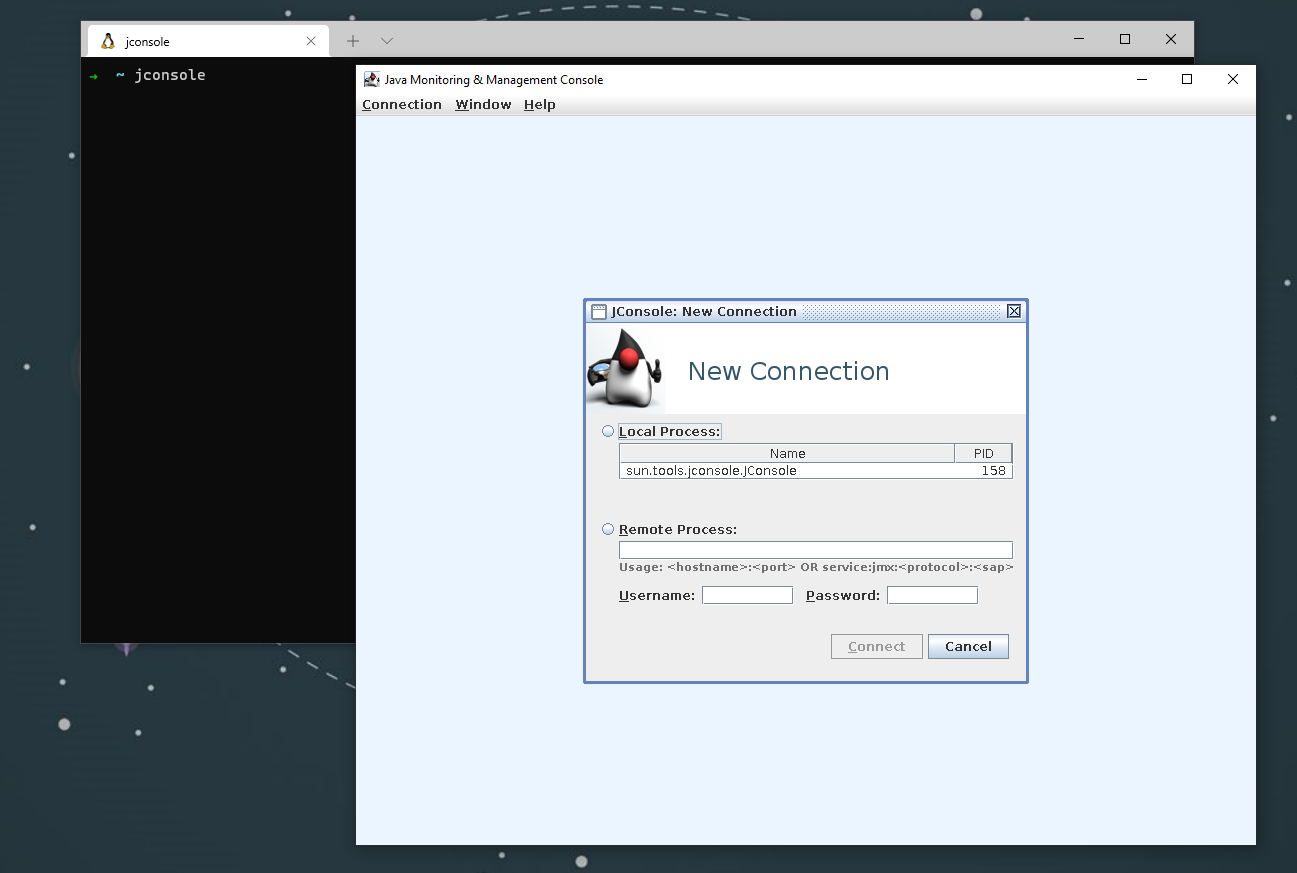
# X11HOST_IP=$(host `hostname` | grep -oP '(\s)\d+(\.\d+){3}' | tail -1 | awk '{ print $NF }' | tr -d '\r')export LIBGL_ALWAYS_INDIRECT=1export DISPLAY=$HOST_IP:0.0export NO_AT_BRIDGE=1export PULSE_SERVER=tcp:$HOST_IPAfter that’s done, if VcXsrv is running, you should be able to open Linux GUI apps from your Terminal.
 Thanks for reading! 🍺