
On this page
Hi 👋
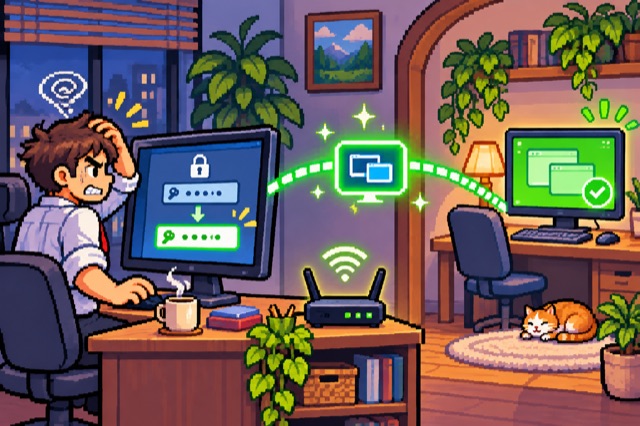
Have you ever tried to setup your Windows’s Remote Desktop functionality and failed with the following error message “logon attempt failed”, knowing that your credentials were correct and that you’re on the same Wi-Fi network with the computer you’re trying to access?
Well, I did.
Using a password fixed this particular setup; it is not a diagnosis for every Remote Desktop sign-in failure. Check the account name, password, and remote sign-in permissions before changing Windows sign-in settings.
Most of the solutions you’ll find on other blogs make you edit your Window’s registry, network settings and so on, which in my case was not needed, and it is somehow overkill.
Logging in with a password and my Microsoft account on the computer I wanted to setup Remote Desktop solved the issue.
What I had to do was to go in Settings > Accounts > Sign-in Options, disable Windows Hello PIN and all other sign in options, setup Password sign-in option and then relog on my PC.
 That’s it.
Windows 11
If you’re on Windows 11 then you don’t have sign in with a password as an option. What worked for me is to reset my PIN using my Microsoft account during the login screen.
After resetting my PIN the Remote Desktop started working.