

ZSA Moonlander Split Keyboard Review
Hello everyone! 👋
It’s been a while since I’ve reviewed a keyboard on this blog. My latest review was for the Logitech MX Keys keyboard and since then I swapped two keyboards, and I’ve landed on the ZSA Moonlander, as a recommendation from someone more experienced with keyboards.
The Logitech keyboard broke after 2 years and I thought I should get another membrane keyboard, so I got a Keychron B1 Pro which was priced decently, about 50$ and it was fine for a while but it lacks illuminated keys and adjustment legs, I had to 3D print some legs for it which I also glued to it. Overall a decent keyboard for the price.
After that I wanted to try a mechanical keyboard and I bought the Numphy Air V2 75% with brown switches. I didn’t like this keyboard, I had to do a firmware update in order to be able to configure it from the software and I couldn’t get accustomed to the layout, it was weird. The keyboard build seemed solid though. I returned the keyboard and the seller didn’t wait it either, I got a full refund on it as well, it was a bit weird for me as I didn’t expect that and in the end I ended up selling the keyboard to someone for about 100$.
Next, I got the Keychron K5 Max for about 100$ with red switches. I was hoping the red switches would be silent but they’re not exactly silent, they aren’t very loud either. The keyboard is great, and I’ve kept it and gave it to my wife, the only downside is that the keycaps are not transparent and when it’s dark you cannot directly see the illuminated letter.
Now I got my Moonlander split keyboard with cherry mx red silent for a bout 3 weeks, it was quite pricey and when I received at first I thought that I made a mistake as the layout is different and I could not type a single word on it.
As I started using it again and again I started to like it and I was really impressed by the software and the configuration options.
You can map each key to whatever you like, and you can also customize the RGB on it so that you can color code them. The keycaps are transparent, and you can see the illuminated letter at night.
Another surprise are the switches, the cherry mx red silent are actually silent compared to what I previously had, there is no clicky sound, and sometimes it feels more silent that my laptop’s membrane keyboard.
The configurator is web based and easy to use, I’ve used it on Windows, Linux and macOS. On Linux you will need to add some udev rules in order to flash the firmware and the configuration on the keyboard, the software will walk you through and give you the rules.
You can’t flash the software on the keyboard without hitting the flash with a pin, that means it’s quite hard if not impossible to flash the firmware if you don’t have a thin needle/pin at your disposal.
As far as configuration goes you can do the following:
- Map each key to whatever you like when tapped.
- Change the key behavior when double tapped.
- Change the key behavior when tapped and held. (I’m not sure how this works)
- Change the key behavior when held.
- Assign a RGB color to each individual key.
- Assign custom actions to keys like: layer switch, combos, animations, mouse actions.
- Create key combos like: A + S = custom key like ESC/Print Screen
- Assign macros to keys, eg when a key is pressed sent: Alt+F4
The configuration options are amazing, this also means that nobody will be able to use your keyboard if you have a custom configuration as you need to remember the keys or leverage the muscle memory.
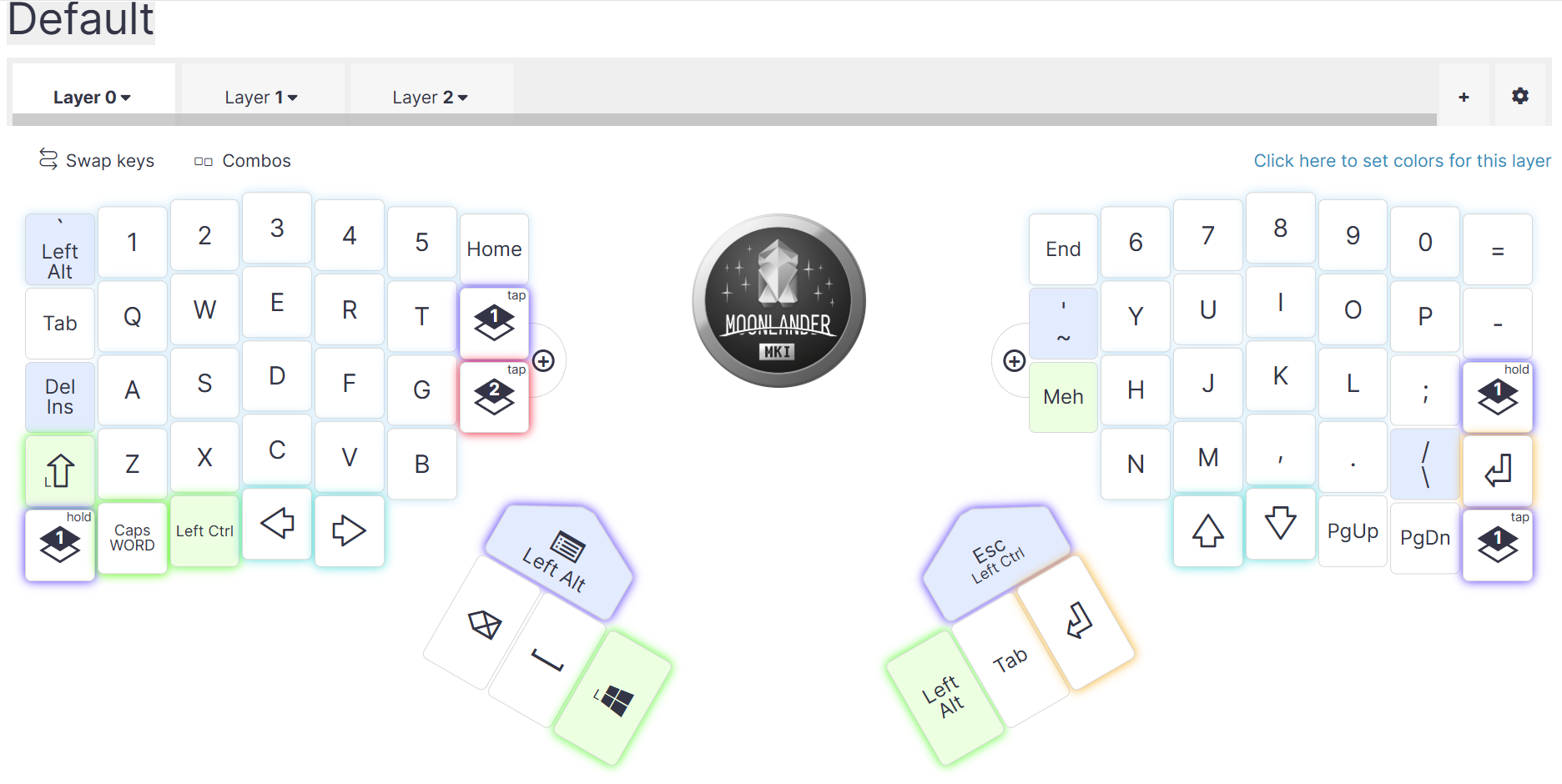
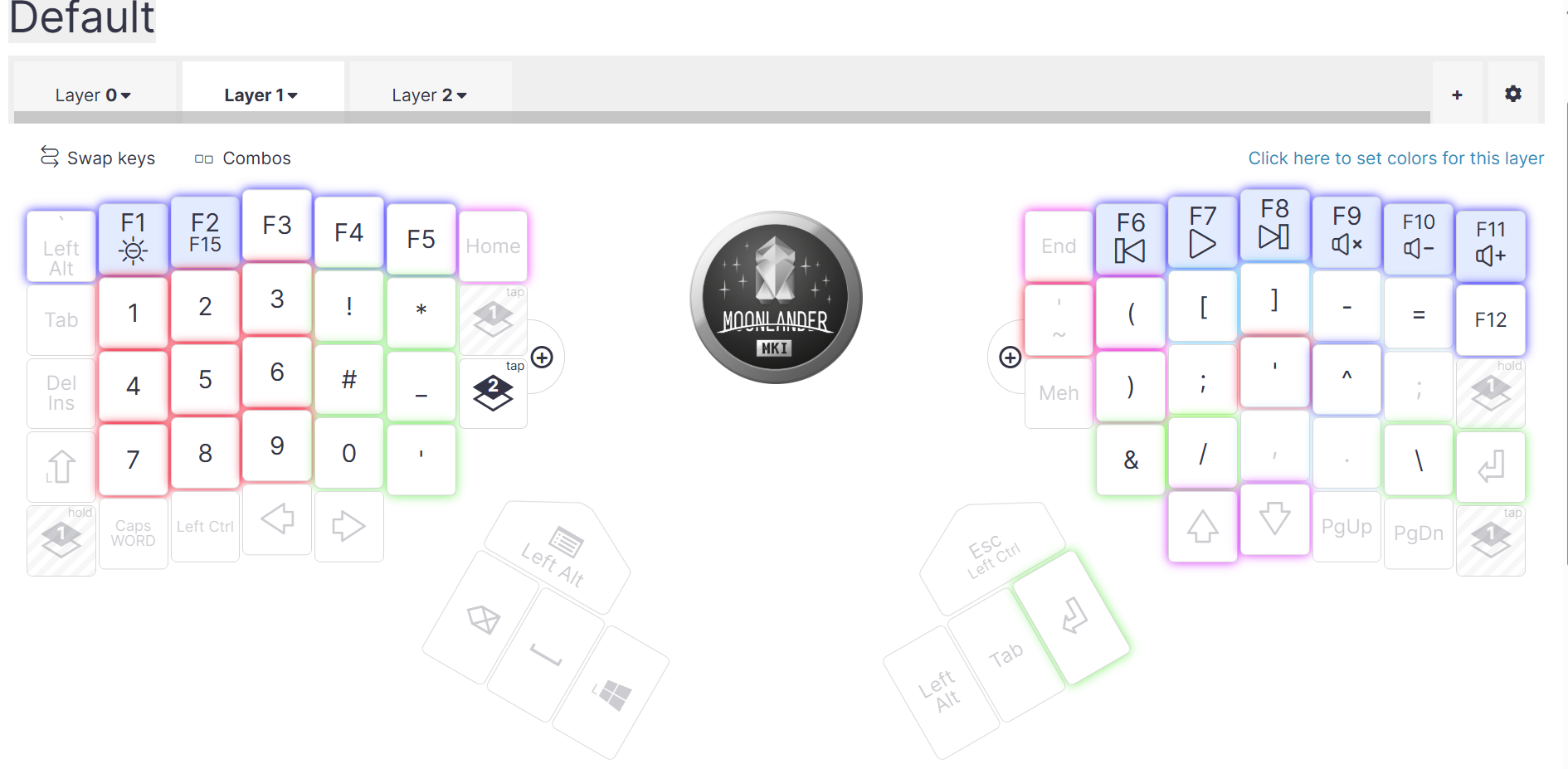
The next great feature of the keyboard are layers, I have currently 3 layers configured.
- The first layer is for typing
- The second layer is for symbols, when programming and a custom numpad.
- The third layer is for multimedia controls and keyboard RGB animations.
Layers are pretty cool, once you get used to them, it expands dramatically what you can do with the keyboard:
The best feature of the keyboard is the comfort it provides for your hands and your posture. I mainly purchased because I was feeling pain in my hands, and I’ve started to use compression gloves and a vertical mouse, this helped to some degree but my pain was gone after 1 week with the keyboard.
As I use the keyboard I get more accustomed to it and if in the first week I was producing 11 words pe minute compared to 90 now it’s even better.
That’s about it, I hope you’ve enjoyed my review, and thank you for reading! 📚